
Excel & CSV lists
Excel list to seating chart.
Use your existing list to plan seating for classes, meetings or workshops.
Start arrangingFree · No install · Local editing without sign-in
How it works
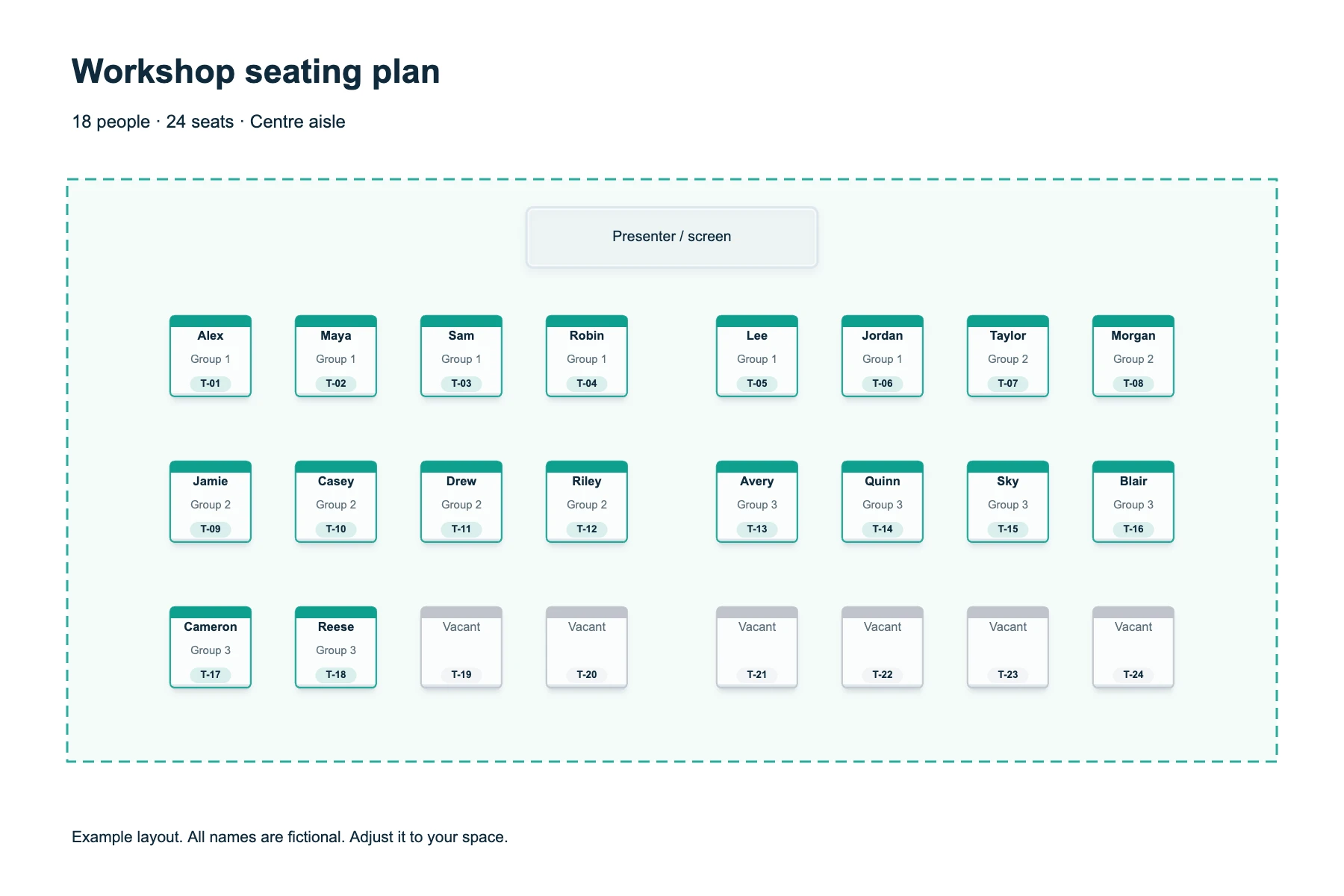
Import the people, choose your layout, then export the chart.
Prepare your list
One person per row, with column headings.
Import the file
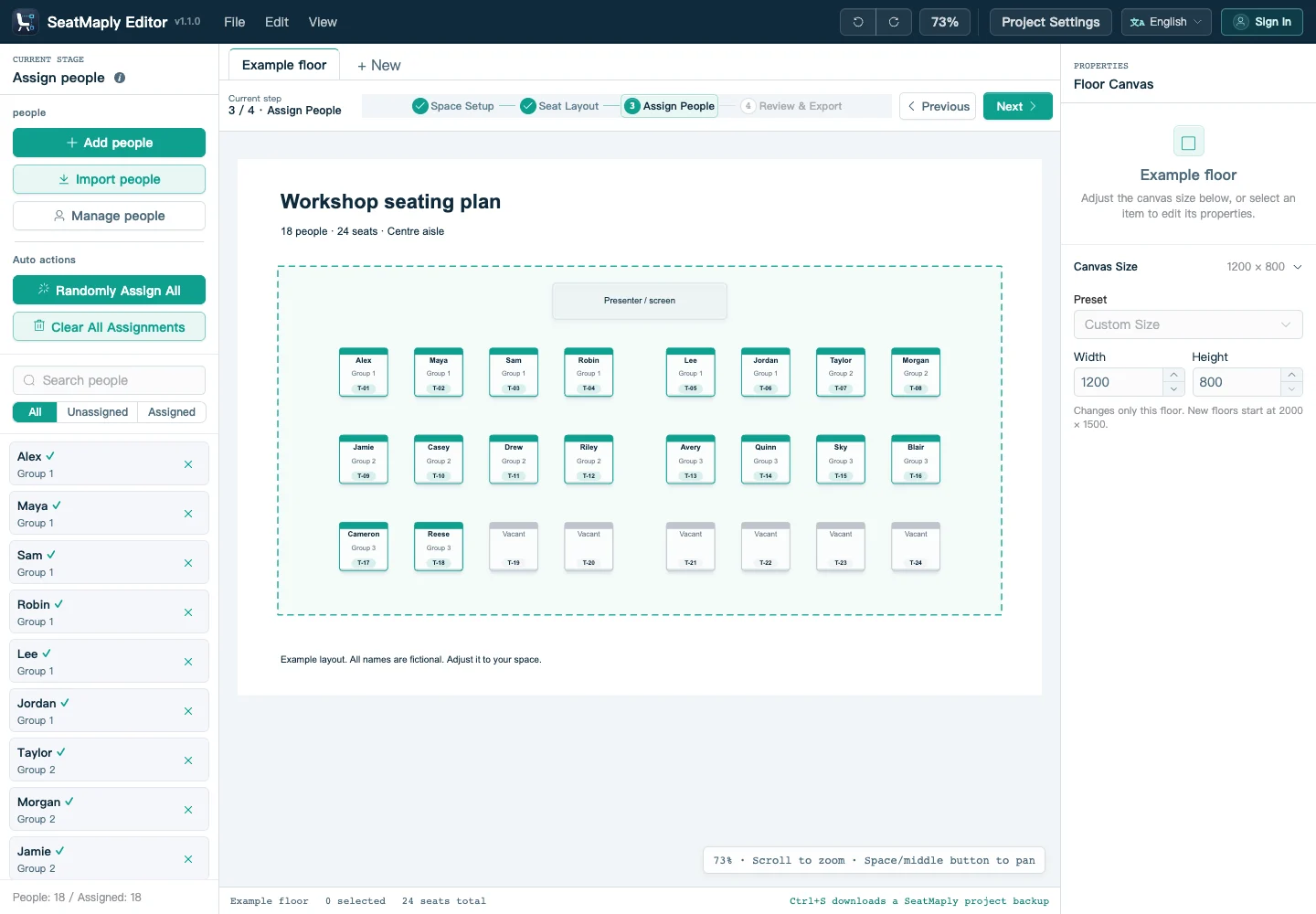
In Assign People, import your list and map the columns.
Arrange seats
Add seats or rows, then drag people onto seats.
Export
Export a PNG, JPG or PDF; save a project backup to edit later.
List format
Names are required. Other fields are optional.
| Name | Note |
|---|---|
| Alex | Group 1 |
| Maya | Group 1 |
| Sam | Group 1 |
XLSX / XLS / CSV · Up to 5 MB and 5,000 people
Arrange on the canvas
Keep the list beside the layout to check people and open seats.
Common questions
Can I export an Excel seating chart?
No. Export formats are PNG, JPG, PDF and a .seat project backup.
How are duplicate names and updates handled?
Same names stay separate. Append imports match by employee ID first, then email; changed records need confirmation.
Which rows are skipped?
Rows without names or with duplicate employee IDs are skipped. The import review shows why.
Is my list uploaded automatically?
It stays in this browser. Upload happens only when you choose cloud save.